Create and edit a multi-camera sequence (In-Depth)
Table of Contents
The term "MultiCam editing" describes the ability to edit material from different cameras into a single video.
Although this might sound simple, it proves to be quite hard with most other video editing programs. In most non-professional programs, material from various sources is combined by hand, which is time intensive and requires a lot of patience. Synchronized scene sequences are crucial in order not to prove distracting during viewing. You may verify the fact that this topic is gaining in significance with your own eyes at just about any family reunion. The number of people with cameras filming the events rises year by year.
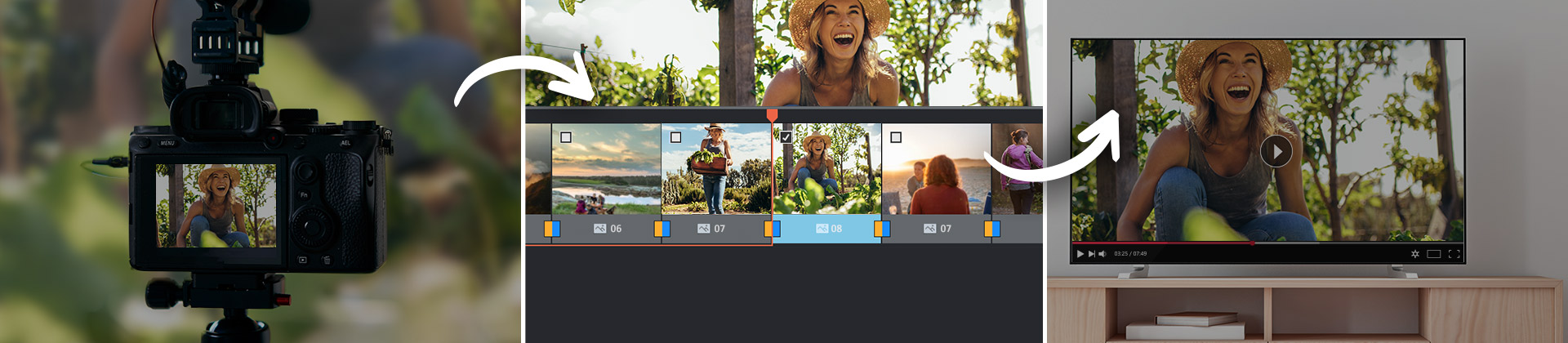
The basics of MultiCam editing dictates that all recordings have the same resolution and that no HD video is inserted between scenes with regular DVD quality. There are two ways of synchronizing recordings from different cameras. With visual synchronization, a prominent visual cue, such as a flash, is localized. This flash is then found on other video recordings, and then serves as a synchronization point for all sources. The difficulty lies in precise synchronization of all recordings.
The second option is audio synchronization. Video editing software Video deluxe shows just how easy it is to synchronously combine material from various sources with MAGIX.To start, simply load or import two movies into the program. It is important not to place either of the videos on the first track, as it is reserved for the final movie. With audio synchronization, a prominent synch point must be found just like with visual synchronization, but in this case it is a sound, not a picture. In the example here, a soccer match is filmed using 2 cameras. The synchronization point is the referee's whistle. To try and synchronize both recordings using an audio cue is very labor-intensive. However, if you right-click the video file and select "volume curve", you will see the wave form of the file's soundtrack. It makes it much easier to determine the audio synchrionization point. The first video on track three (the video track) and four (the audio track) is selected, the synchronization cue point is selected using the position marker, and then the "Set snap point" function activated by going to "Edit > Edit snap point". A vertical line appears where the synchronization point lies.
This process is repeated for the second film on tracks five and six, so that both recordings have snap points. Now, the second movie is moved by hand in such a way that one audio synchronization point lies over the other.
Now, the "MultiCam" editing function is activated, and you will see both videos in a large video monitor. The movie will be played back, and it is up to the user to click on the recording, whose perspective he prefers to use at a certain time. The "camera switches" may be viewed on a third screen where the software records and saves the edited material on the first two tracks. An additional advantage is that the length of the individual camera scenes in the edited film on the first two tracks may still be changed after the selection of scenes in the video monitor; for this, the user simply has to select the cuts on the first track and move them to the left or right using the mouse.
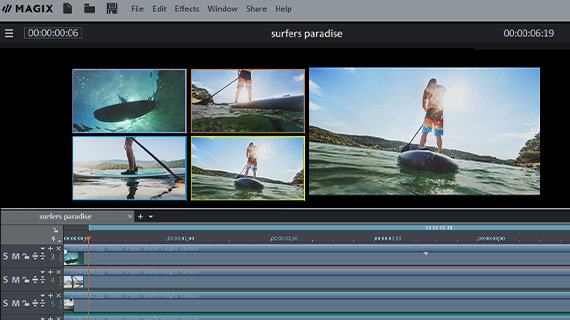
Simple and effective MultiCam editing with MAGIX
With Video deluxe and MAGIX Video Pro X (in this version waveform synchronization can even take place automatically), a relatively complex topic in video editing is made playfully simple. MultiCam editing places the user in a position to easily set synch points in recordings made using different cameras in order to quickly conduct synchronization and then be able jump from one perspective to another.